
The Architecture of Modern Finance: Scaling Operations via Accounting APIs
How high-performance platforms leverage unified ledger infrastructure to achieve forensic precision, eliminate engineering debt, and build programmable financial workflows.

NewLedger Editorial
If you run a small or mid-size business, “modernizing operations” usually means the same few moves: less re-keying between tools, faster answers from your numbers, and software that talks to each other instead of living in separate tabs.
Accounting API integration is what makes that possible — your accounting system exposes a controlled way for other apps to read (and, where you allow it, draft) financial data. You stay in charge of what connects, what it can do, and when access ends.
On NewLedger, that layer is App Connect. For most accounting API integration work — automations, internal tools, partner sync — you use API credentials (client ID + secret, server-side token exchange). When an external client needs a delegated, browser-based approval flow, you use OAuth 2.0 with consent, redirect URIs, and PKCE where required. MCP clients are one example of that delegated flow. This guide covers both, in that order.
In finance, that choice is not just technical. It decides where secrets live, how narrowly access can be scoped, whether a human must approve the connection, and how cleanly your team can revoke access later.
Why accounting API integration helps when you modernize ops
Typical SMB goals and how a connected accounting API supports them:
| What you're trying to do | How integration helps |
|---|---|
| Ask questions about cash, AR, or expenses without exporting spreadsheets | MCP clients (e.g. ChatGPT) read live data after you approve OAuth 2.0 consent — see MCP for accounting |
| Automate repetitive work (invoice drafts, expense capture, categorization hints) | Automations use API credentials and call the API instead of copying numbers by hand |
| Connect a stack you already use (payments, CRM, industry tools) | Partner apps sync through API credentials or OAuth 2.0, depending on whether they need server-side credentials or user-approved delegated access |
| Keep control as you add tools | One place to see what's connected, revoke access, and review activity |
The point is not “open the ledger to the internet.” It's replace manual bridges — email attachments, CSV exports, staff pasting totals into chat — with governed connections you can audit and turn off.
App Connect issues scoped, auditable access — never your login password. Two connection styles exist; they are not interchangeable:
| Connection style | Use for | How it works |
|---|---|---|
| API credentials | Accounting API integration — automations, scripts, partner backends, anything you host | Create an app in Settings → App Connect, delegate permissions, exchange client_id + client_secret for bearer tokens. No redirect URI, no consent screen. |
| OAuth 2.0 | MCP clients, partner apps, or custom clients that need a user-approved connection | Register or use an OAuth client, send the user through NewLedger's consent flow, and complete the token exchange with redirect URI + PKCE where required. Managed under OAuth Connections. |
If you are modernizing ops with integrations and automations, start with API credentials below. OAuth 2.0 is documented later for delegated client connections, with MCP as the most common example.
Set up accounting API integration (API credentials)
Use API credentials when you control the server, can store a client_secret safely, and do not need an interactive consent screen. This is the default path for SMB accounting API integration.
What you get
- Scoped permissions — each app only receives permissions you delegate at create time (and your user account must already hold them).
- Short-lived access tokens — clients request a new token from the token endpoint when one expires.
- One-time secrets — the client secret is shown only at create or rotate.
- Lifecycle control — revoke, delete, or restore apps from App Connect; activity is logged.
- No OAuth redirect — setup is entirely in App Connect settings plus server-side token exchange.
Steps in the workspace
- Open Settings → App Connect and use the API Credentials tab to see connected apps, permissions, and last-used dates.
- Create App, choose API credentials, name the integration, and pick the permissions it may use.
- Copy the client ID and client secret once (the secret is only shown at create or rotate).
- Open the app detail anytime to review scope, rotate the secret, or revoke access.
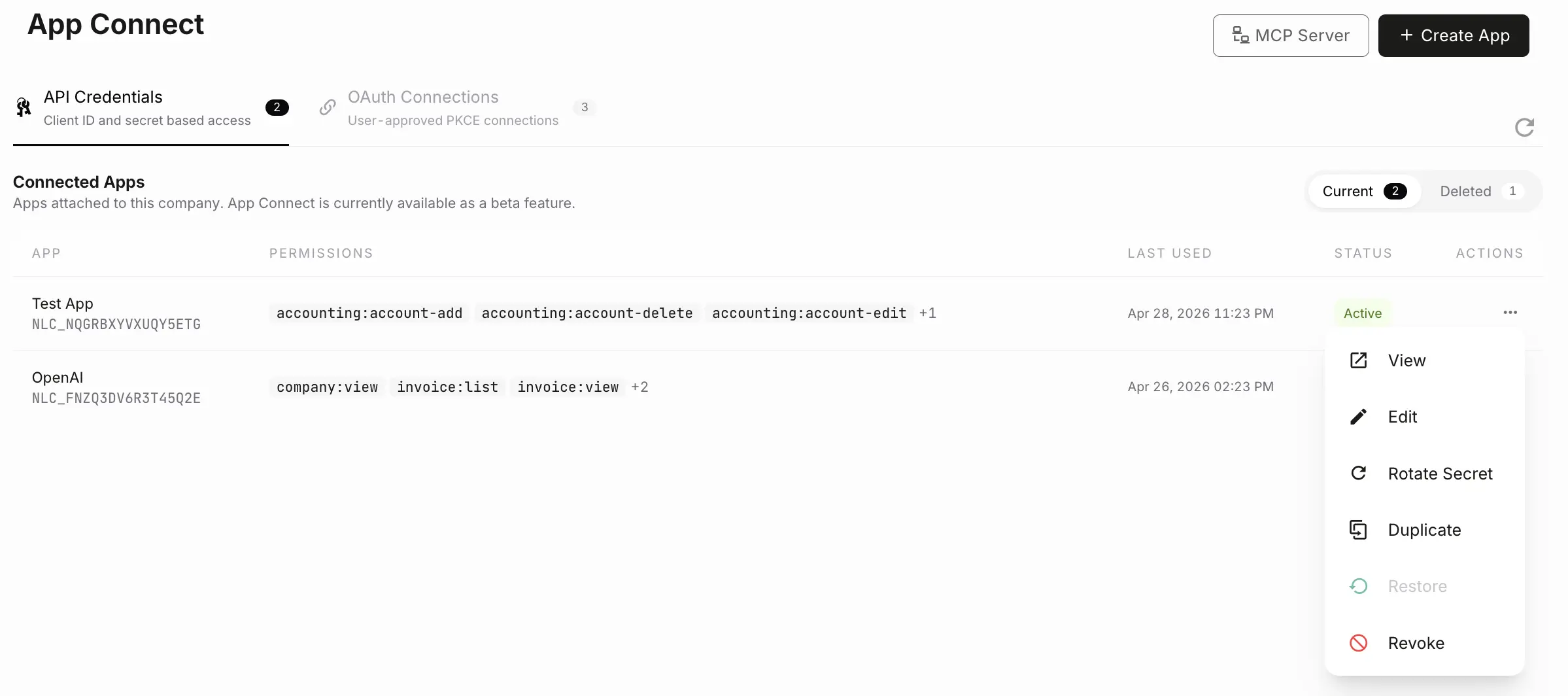
The API Credentials tab lists each connected app, its delegated permissions, and when it was last used.
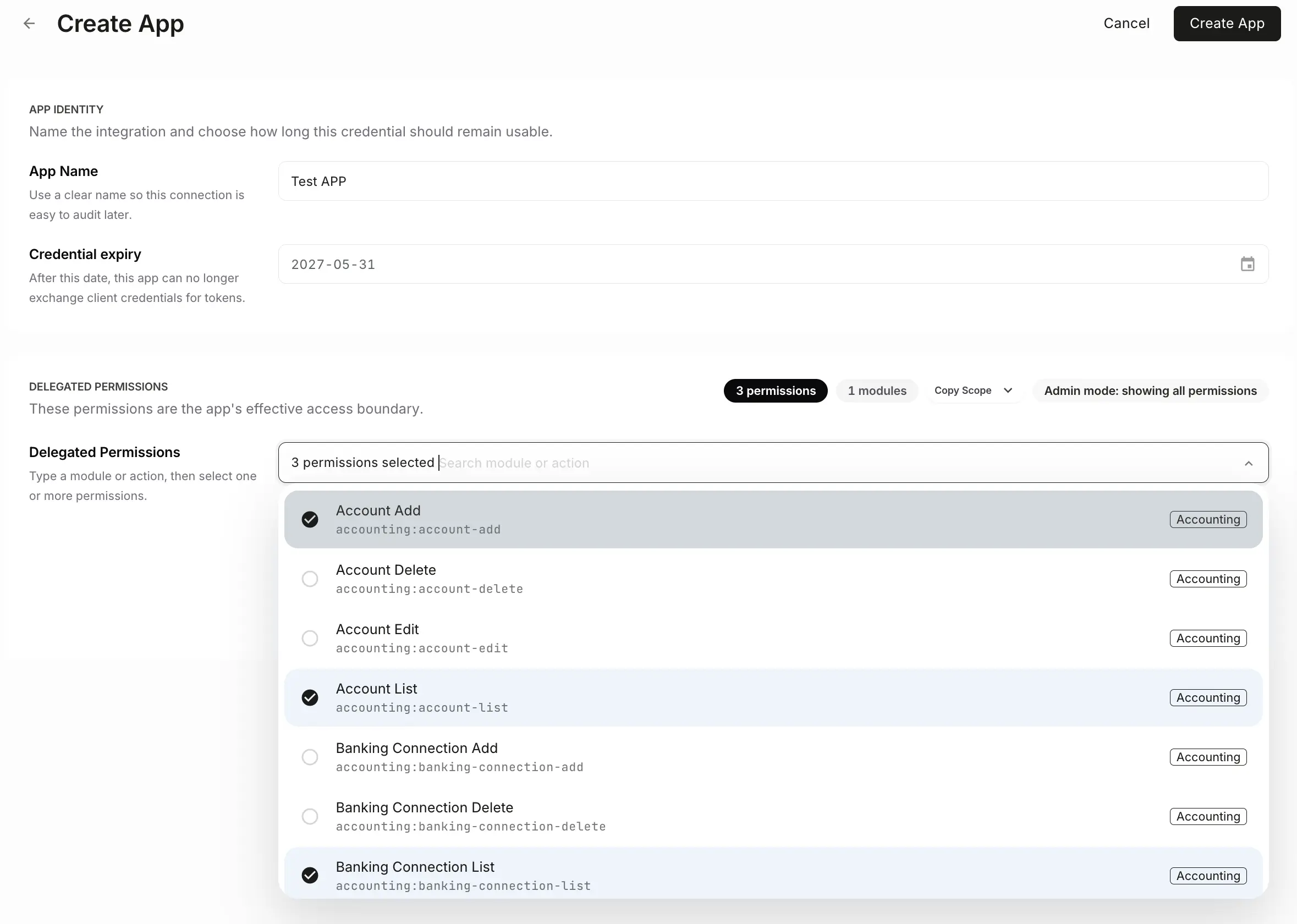
When you create an app, you name it, set optional expiry, and delegate only the permissions that automation needs.
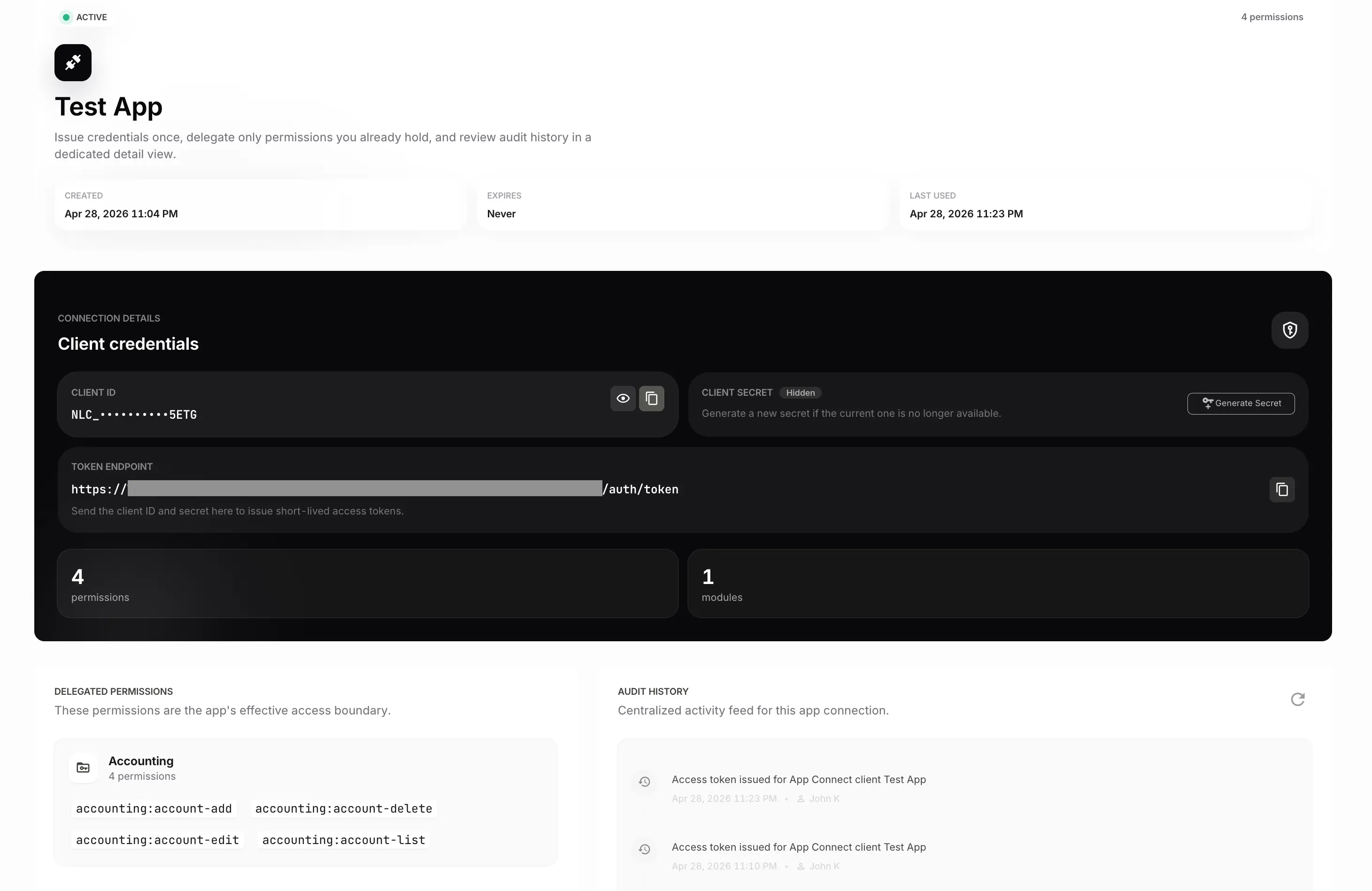
The detail view is where you audit scope, rotate secrets, or revoke the app.
Token exchange (server-side)
Your integration exchanges the client ID and secret for a short-lived bearer token using the App Connect token API. There is no browser step, no redirect URI, and no PKCE.
Use the NewLedger API documentation for request formats, scopes, and company-scoped token exchange. Store secrets in a vault or secrets manager — never in source control, client-side code, or chat.
OAuth 2.0 setup for delegated clients (e.g. ChatGPT / MCP)
OAuth 2.0 authorization code + PKCE is the delegated-access path — not the flow used by API credential apps under the API Credentials tab. When you add your company MCP URL in ChatGPT (or another supported client), that product drives the OAuth flow below. The same consent model also supports other custom or partner clients that need user-approved access instead of a stored client_secret.
For product context and what to ask your AI assistant, see MCP for accounting. For a concise decision guide, see API credentials vs OAuth 2.0 in NewLedger. This section covers the OAuth mechanics behind delegated connections.
What you get with OAuth 2.0
- Consent-first access — pick a company, review permissions, confirm with 2FA before any token is issued.
- Scoped permissions — same permission strings as API credentials, but chosen on the consent screen.
- PKCE (S256 only) — required for public MCP clients.
- Refresh tokens — rotate on use; revoke by deleting the connection under OAuth Connections.
End-user flow: connect a delegated client
Use the in-app setup guides; you do not need to call the API yourself to connect ChatGPT.
1. Copy your company MCP URL
In your NewLedger workspace:
- Open Settings → App Connect
- Click MCP Server
- Copy the company-specific MCP endpoint
That URL is unique to the company you have selected. Use it when the external client asks for a server address.
You can also reach per-client instructions from Settings → Integrations (for example the ChatGPT setup page).
2. Start connection in the external app
In ChatGPT (or another supported MCP client), add a connector and paste your MCP URL. For other OAuth-capable clients, start the connection from the client using the redirect URI and client registration it expects. The client opens NewLedger's sign-in and consent flow in your browser.
3. Review and approve on the consent screen
You land on NewLedger's OAuth consent page. The screen shows:
- Which app is requesting access (name, domain, logo when provided)
- Which company the connection applies to (you can switch companies if you have access to more than one)
- The permission list that will become the token scope — you can remove individual permissions before approving
When you continue, NewLedger asks for a verification code (TOTP or another configured confirmation method). Authorization does not complete without it.
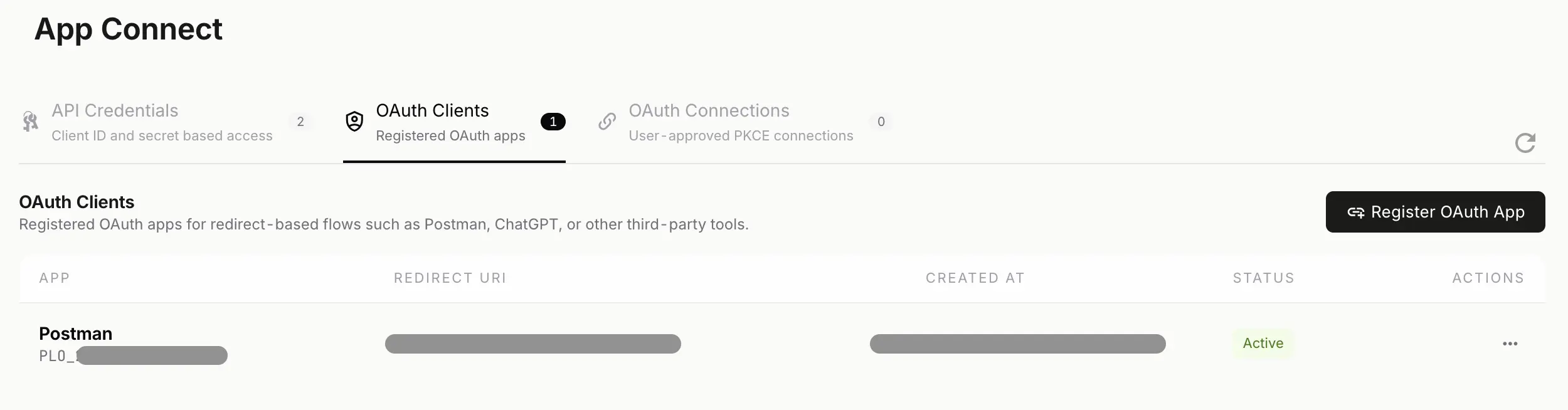
This screen is part of App Connect's OAuth 2.0 flow. API credential apps are configured entirely under the API Credentials tab and do not use browser consent.
4. Return to the client
After approval, you are returned to the MCP client. It completes the connection securely on its side, then can call your company's MCP server within the permissions you approved.
5. Manage connections later
Approved OAuth apps appear under Settings → App Connect → OAuth Connections. From there you can:
- See when the connection was consented
- Open connection details (scopes, MCP URL, client metadata)
- Delete the connection — this revokes refresh tokens and blocks active access; the external app must ask for consent again
Idle connections are surfaced in the list so you can audit what still has access.
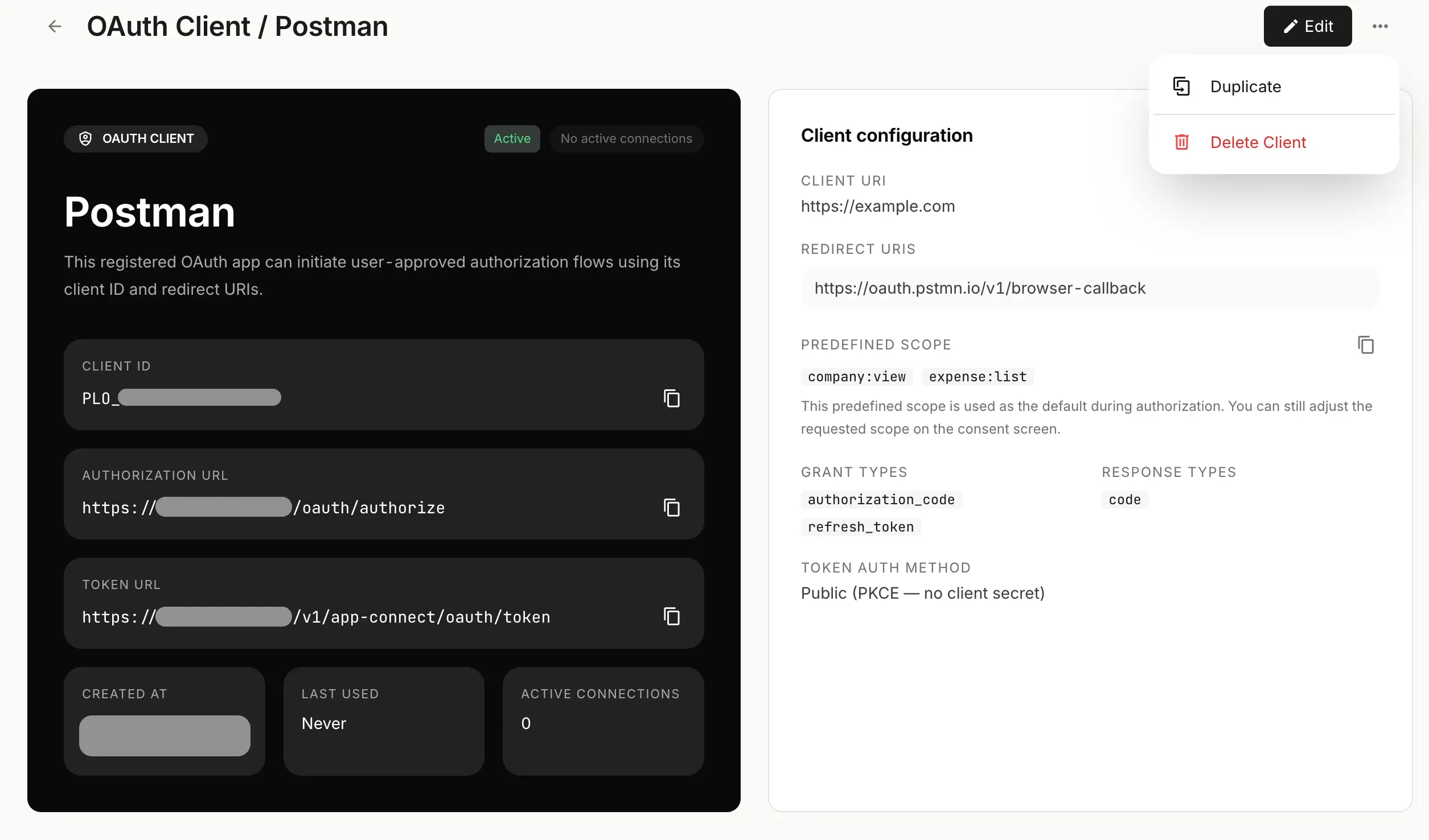
OAuth 2.0 connections stay visible in App Connect so finance and security teams can review scopes, usage context, and revocation options later.
Register a custom OAuth app
Some delegated setups need you to register an OAuth client in NewLedger instead of relying on the external product's built-in registration. That includes MCP development, partner app testing, and any browser-based client connection you operate yourself.
- Go to Settings → App Connect
- Choose Register OAuth App (or create a new app and pick the OAuth connection type)
- Fill in:
- App name — shown on the consent screen
- Redirect URI — must match exactly what the MCP client shows (HTTPS required)
- Save the client ID. Public clients use PKCE and do not receive a long-lived client secret.
ChatGPT tip: Copy the redirect URI from ChatGPT's connector setup. Do not guess or reuse URIs from other products.
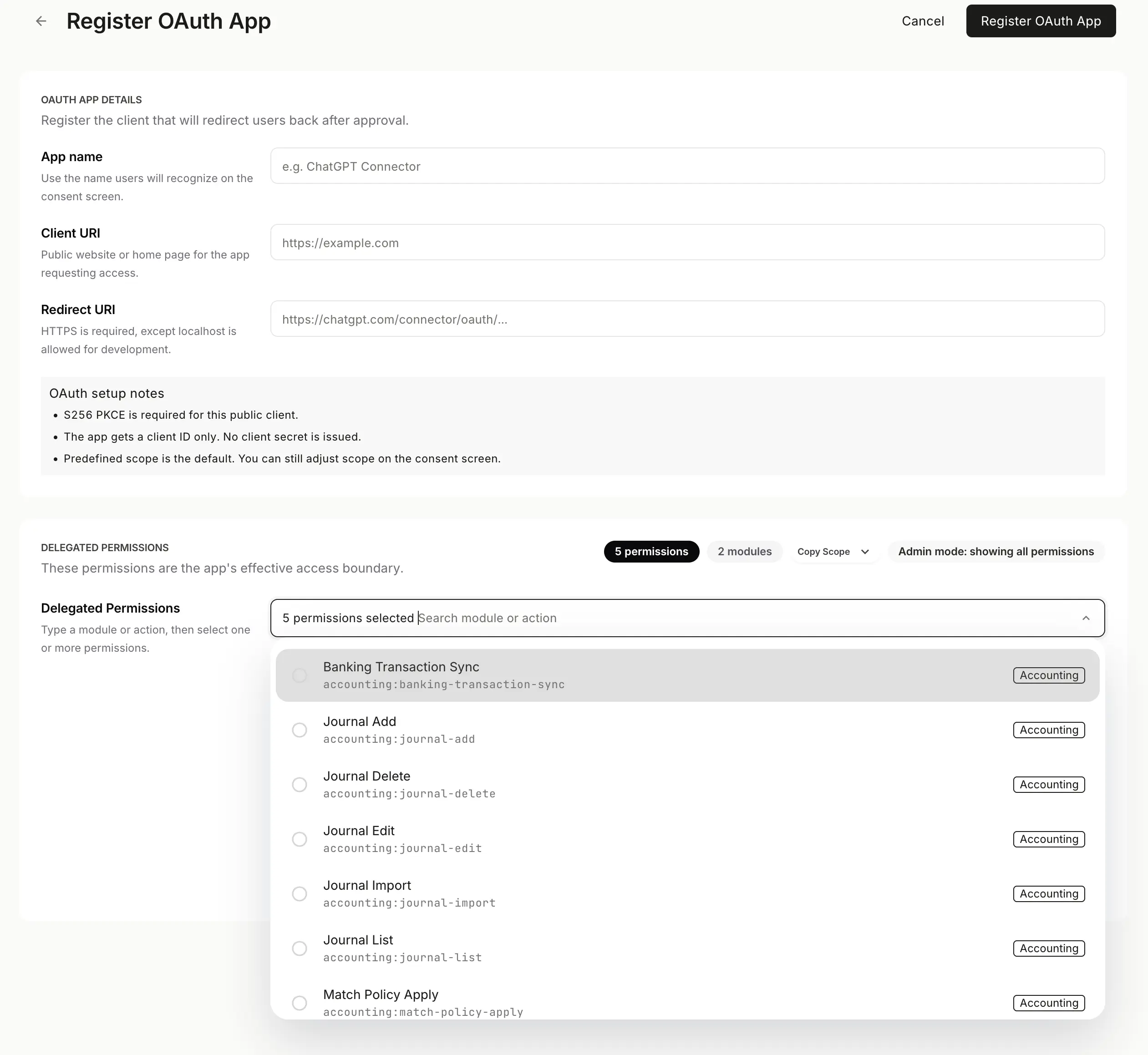
Register OAuth 2.0 clients only when the integration genuinely needs delegated browser-based access. Keep server-side automations on API credentials instead.
Building against NewLedger's OAuth layer
App Connect OAuth is implemented on the NewLedger API and completed in the NewLedger web app consent UI. API credential apps do not use that flow.
If you are building or certifying an integration (not just connecting ChatGPT as a user):
- Follow the OAuth 2.0 authorization code flow with PKCE (S256) used by App Connect for delegated access.
- Use OAuth discovery metadata published by NewLedger for your environment rather than hard-coding URLs.
- Complete approval only through the signed-in consent screen and 2FA — tokens must not be issued without an explicit user action in the app.
- Document integration details in your own runbook; use the NewLedger API documentation for supported App Connect and MCP operations.
If you want to document an OAuth 2.1-specific profile or migration path, keep that as a separate technical page or implementation note. This guide is intentionally about the OAuth 2.0 product flow users see in App Connect.
We do not publish step-by-step token or authorize API recipes in this post. That reduces noise for readers and avoids exposing implementation detail that could be misused. Legitimate integrators should use the official API docs and your NewLedger account team if you need partner access.
OAuth 2.0 flow at a glance
| Step | Who | What happens |
|---|---|---|
| 1 | Client (e.g. ChatGPT) | Opens NewLedger sign-in and consent using PKCE |
| 2 | You | Review company and permissions in the app, then confirm with 2FA |
| 3 | NewLedger | Records the approved connection with a scoped permission set |
| 4 | Client | Calls the allowed NewLedger surface only within that scope |
Quick comparison
| API credentials | OAuth 2.0 | |
|---|---|---|
| Typical use | Automations, ETL, partner APIs, internal tools | MCP clients, partner apps, or delegated user connections |
| Setup UI | API Credentials tab | Client registration, consent flow, and OAuth Connections tab |
| User consent screen | No | Yes (in-app OAuth consent) |
| Redirect URI | No | Yes (must match the MCP client exactly) |
| PKCE | No | Yes (S256) |
| How the client gets a token | Server-side exchange with client secret | User approval, then client completes OAuth |
Both issue App Connect bearer tokens under the same permission model. The difference is who holds the secret and whether the user must approve the connection in a browser.
Security defaults worth knowing
API credentials
- Permissions are delegated, not elevated — at create time, from your user's permission set.
- One-time secrets — treat the client secret like a password; rotate if exposed.
- 2FA for sensitive actions — revoke, delete, and rotate require action confirmation.
- Audit trail — token exchange failures and lifecycle events appear in workspace activity.
- Separate non-production from production — use distinct apps, scopes, and owners for testing versus live finance workflows.
OAuth 2.0 connections
- Consent + 2FA before the connection is active.
- PKCE (S256) — required for public MCP clients.
- HTTPS redirect URIs for registered OAuth clients.
- Approve only the scopes you actually need — treat scope review as a finance-control step, not a formality.
- Revoke via OAuth Connections — deleting a connection removes ongoing access; data already drafted in NewLedger stays for you to review.
A secure rollout looks like this
- Create a test-company connection first so token exchange, scopes, and workflows are proven before production.
- Start with the smallest permission set that lets the integration do useful work.
- Confirm the activity log shows the events finance and security teams expect to review later.
- Record an internal owner, purpose, and revocation path for every live API credential app or OAuth connection.
Troubleshooting (workspace)
API credentials
| What you see | What to try |
|---|---|
| Token request fails | Confirm client ID and secret, app is active, and the app was not revoked or deleted |
| Access stops after a date | Check optional credential expiry on the app |
| Scope or permission errors | Ensure the permission is delegated on the app and your user role allows it |
OAuth 2.0
| What you see | What to try |
|---|---|
| Consent does not finish | Complete 2FA on the consent screen; do not skip the in-app approval step |
| ChatGPT cannot connect | Confirm the MCP URL is for the correct company; reconnect from Integrations or App Connect |
| Redirect or registration errors | Redirect URI must match the MCP client exactly (copy from ChatGPT, do not type from memory) |
| Connection still listed but client fails | Delete the OAuth connection and go through consent again |
For API error details while building an integration, use the API documentation in the context of your own test company — not production credentials.
Where to go next
- Accounting API integration (automations, partners): create API credentials under Settings → App Connect
- Choosing between connection types: API credentials vs OAuth 2.0 in NewLedger
- AI assistants over MCP: MCP for accounting
- Claude workflows: Claude Can Now Work With Your NewLedger Books
- Microsoft Copilot workflows: Microsoft Copilot Can Now Work With Your NewLedger Books
- API reference: NewLedger API documentation
- Workspace: NewLedger app
Accounting API integration should make operations faster without weakening financial control. Use API credentials when you run the integration and can store a secret safely; use OAuth 2.0 when the client needs delegated, consent-driven access through the browser.
More in Guides
How to set custom exchange rates in NewLedger
Start from the live rate, choose an effective period, and see which rate your transactions use.
Read articleClient Accounting Onboarding Checklist for Bookkeeping Firms
A practical checklist for moving a new client from signed scope to reliable monthly delivery—with clean opening data, controlled access, and clear responsibilities.
Read articleManaging Multiple Client Ledgers: An Operating Guide for Modern Accounting Firms
A practical framework for standardising onboarding, reconciliation, review, close, and reporting without weakening the boundary around each client's books.
Read article