
How to set custom exchange rates in NewLedger
Start from the live rate, choose an effective period, and see which rate your transactions use.

NewLedger Editorial
Automatic exchange rates cover most day-to-day foreign-currency work. Finance teams still sometimes need a specific rate, applied to a specific period, with a record of who set it and when.
NewLedger handles this with custom exchange rates (FX rates). In Settings → Currencies → FX Rates, you choose a foreign currency, enter the rate against your company currency, and give it an effective period. For a one-off exception, you can also set the rate on an individual invoice.
On this page
- When teams need a custom rate
- See live and custom rates at a glance
- How to add a custom FX rate
- Choose when your custom rate applies
- See which rate your invoice is using
- Handle an individual invoice separately
- Edit or remove a custom rate
- Review rate changes in one place
- Manage custom rates through the API
- Frequently asked questions
When teams need a custom rate
A treasury policy or a customer agreement may call for a specific conversion rate. Keeping that rate and its effective period in NewLedger gives your team a shared schedule.
Choose a rate that fits the reporting purpose. A budget or contract rate is not automatically suitable for statutory accounting. IAS 21 requires the spot rate on the transaction date for initial recognition, and allows an appropriate approximation. Averages are not appropriate when rates fluctuate significantly. For Singapore GST, follow IRAS exchange-rate requirements.
See live and custom rates at a glance
The Currencies tab shows which currencies use Live Rate and which use Custom. In this demo, SGD is the Base currency, AUD and USD use live rates, and EUR has a custom rate.
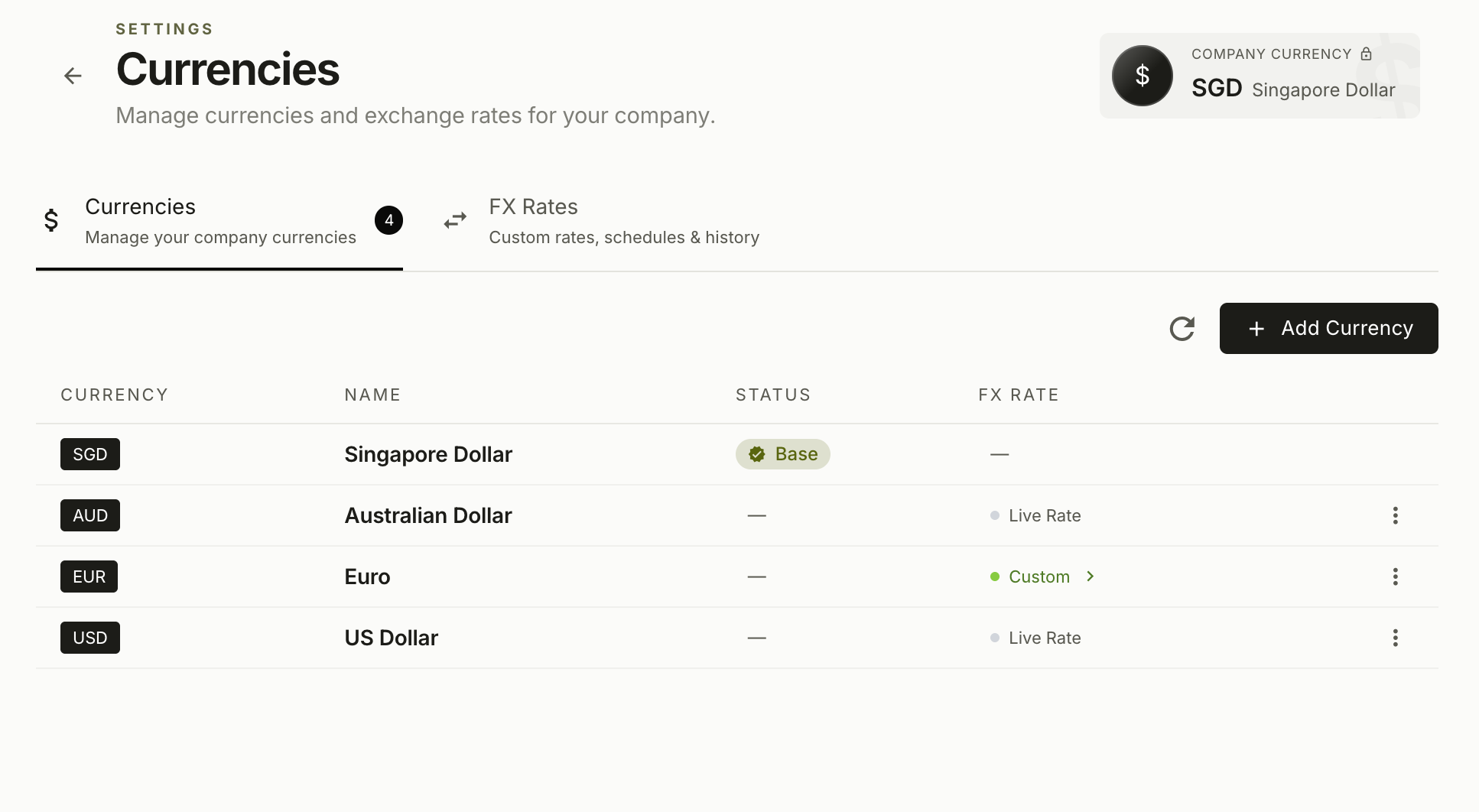
SGD is the company currency. Open FX Rates to review a custom rate's value and effective period.
How to add a custom FX rate
- Open Settings → Currencies → FX Rates.
- Click Add FX Rate.
- Choose the Foreign currency and check the displayed Company currency.
- The Exchange rate is prefilled with today's live (automatic) rate. Keep it, or enter the rate you need, with up to six decimal places.
- Set Effective from and, optionally, Effective through. Leave the end date blank to apply the rate indefinitely.
- Review the rate and dates, then click Save.
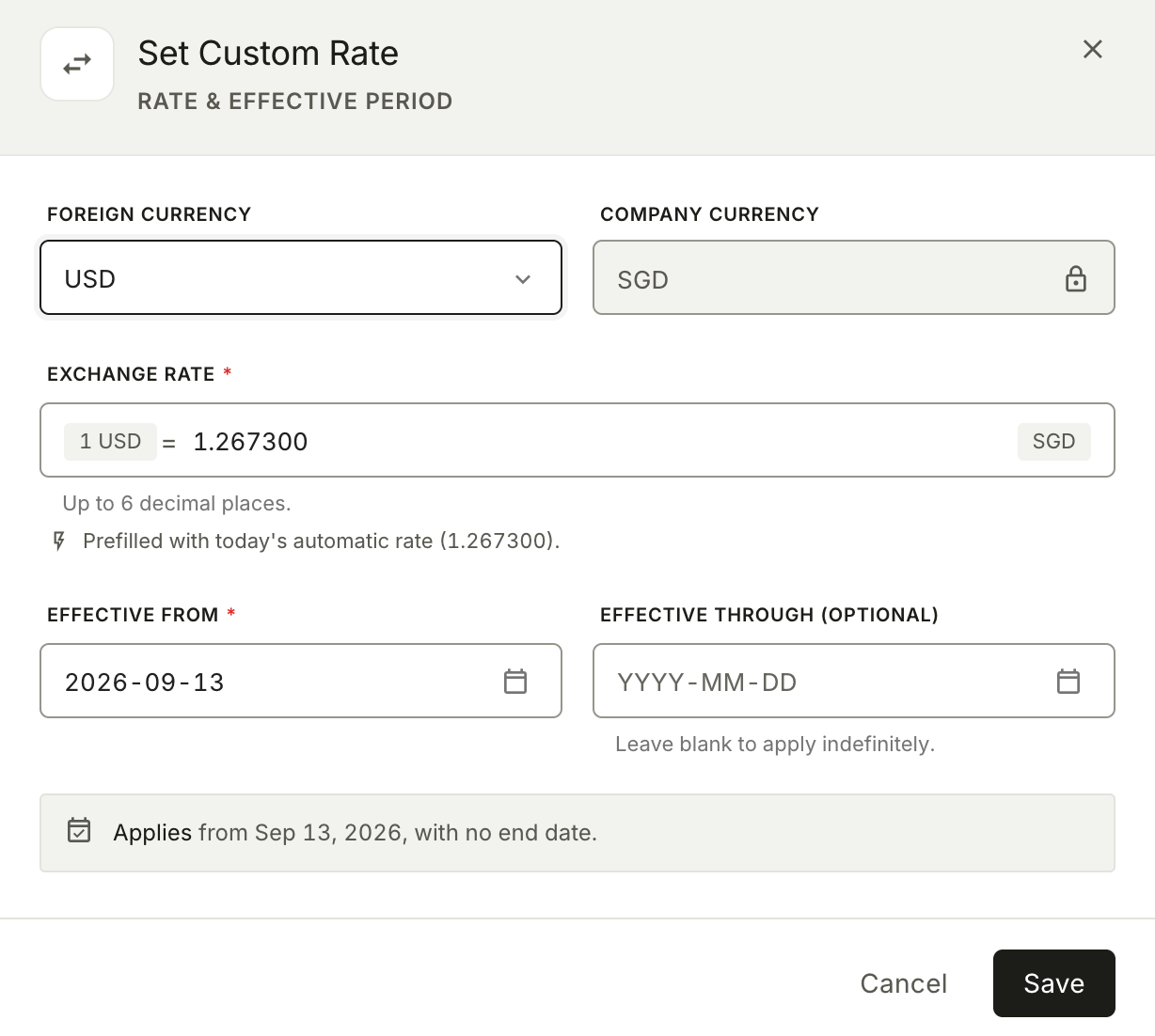
The dialog prefilled USD from today's automatic rate. You can keep that starting point or replace it before saving.
The conversion direction is 1 foreign currency = X company currency. Later screenshots in this guide use the demo company's EUR custom rate: at 1 EUR = 1.50 SGD, EUR 1,000 converts to SGD 1,500.
Choose when your custom rate applies
Dates use the company's timezone, and the end date is inclusive. For a rate set for October 1–31, the form previews a return to automatic rates on November 1, provided no other custom period applies. Overlapping periods are rejected. When you replace an open-ended rate, you can end it the day before the new period starts.
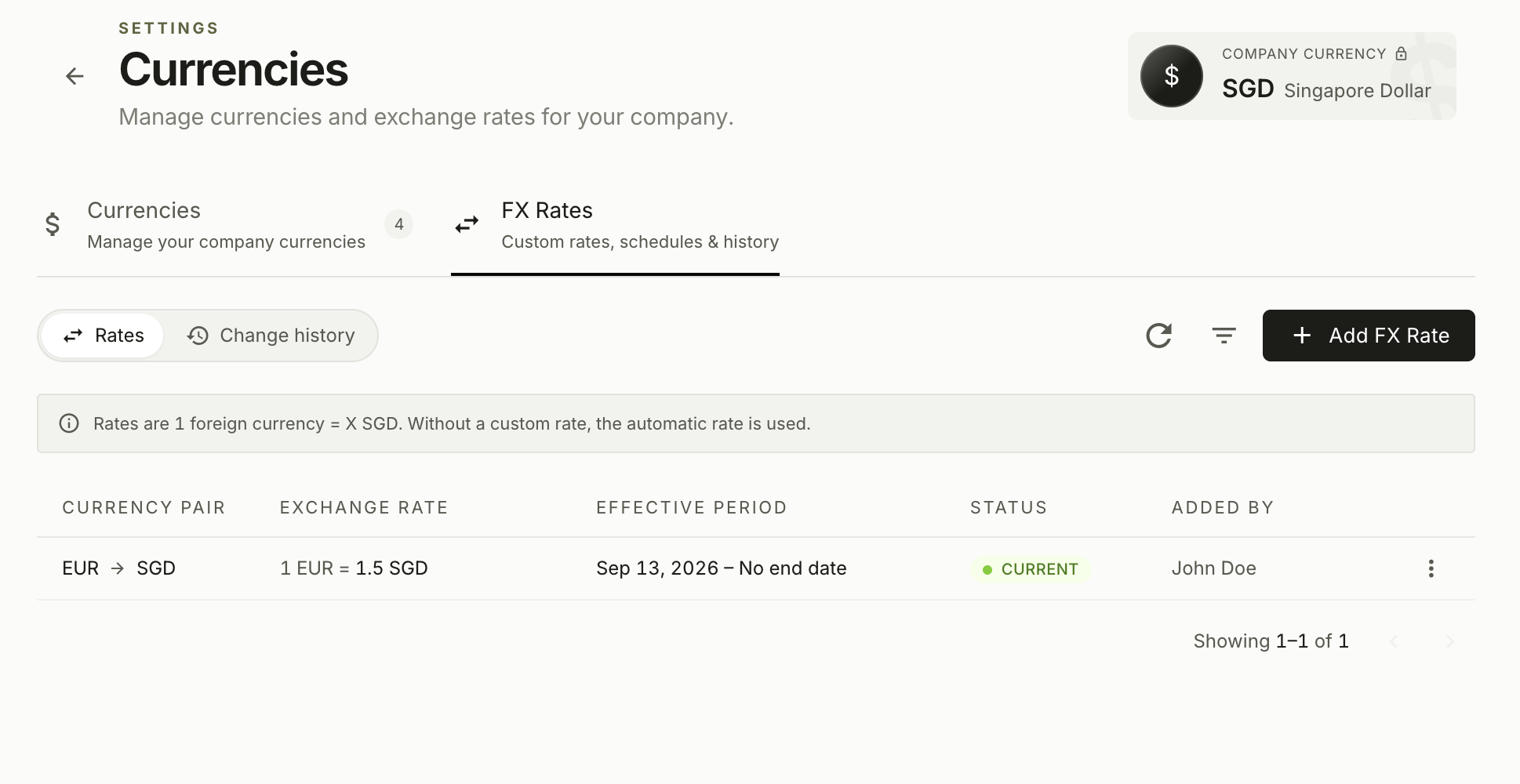
The list shows the rate, effective period, status, and who added it. This demo rate has no end date.
See which rate your invoice is using
In the invoice editor, check Rate near the customer details. The details popover shows the source—for example, The company's custom rate for this date—points to Settings → Currencies → FX Rates, and shows both conversion directions.
In this example, 1 EUR = 1.500000 SGD; the reverse is 1 SGD = 0.666667 EUR. You can copy either value.
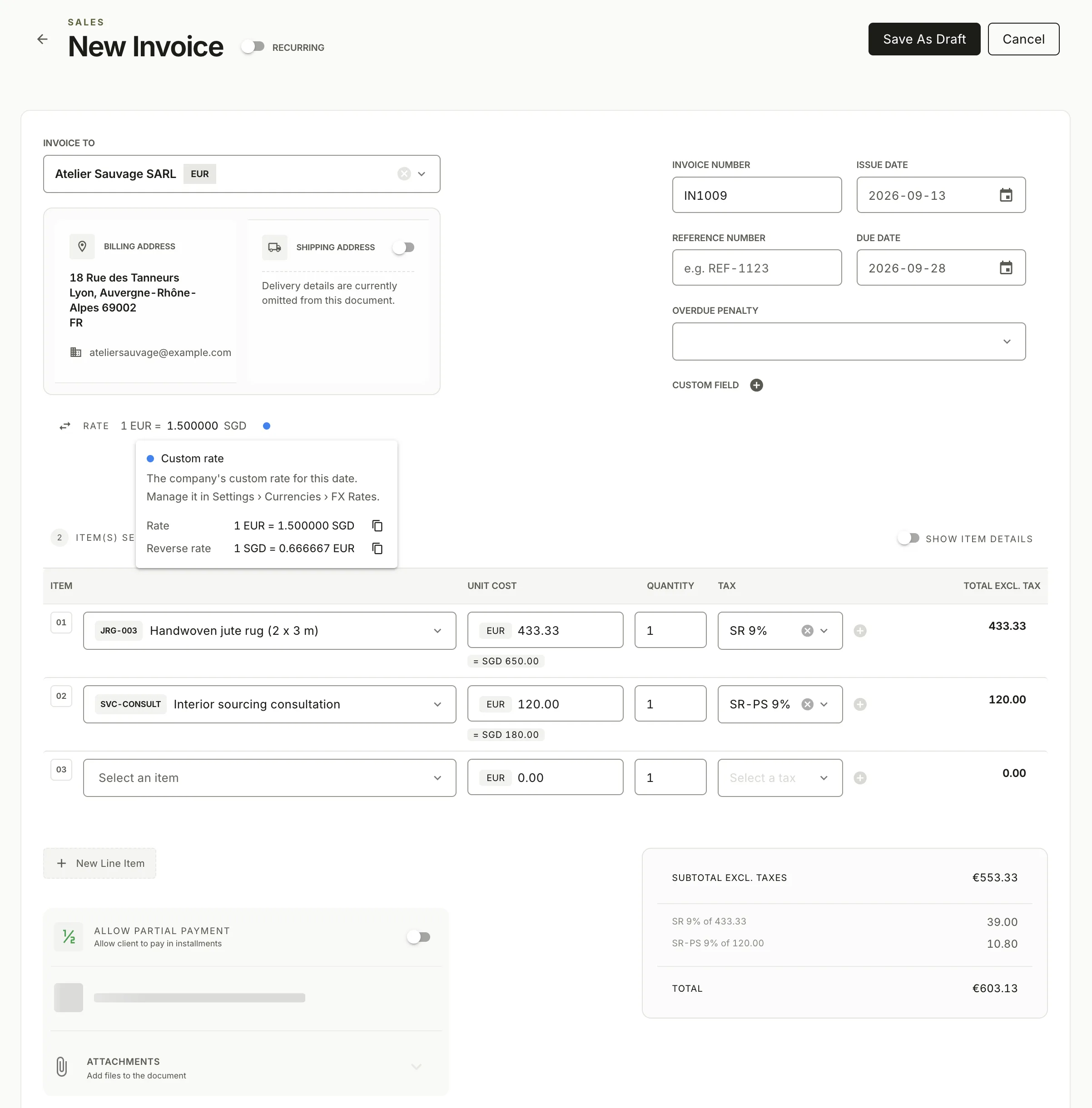
The rate details identify the company custom rate used for the invoice date.
Handle an individual invoice separately
For a one-off exception, select the Rate control to open Rate for this transaction, enter the rate, and save the invoice. That rate applies only to this invoice, not to the company schedule. Recheck the displayed value before saving, especially after you change dates. See online invoicing for the wider workflow.
Edit or remove a custom rate
Choose Edit to change the value or end date of a current or upcoming rate. Once the period is in effect, the start date is locked. Expired rates cannot be edited.
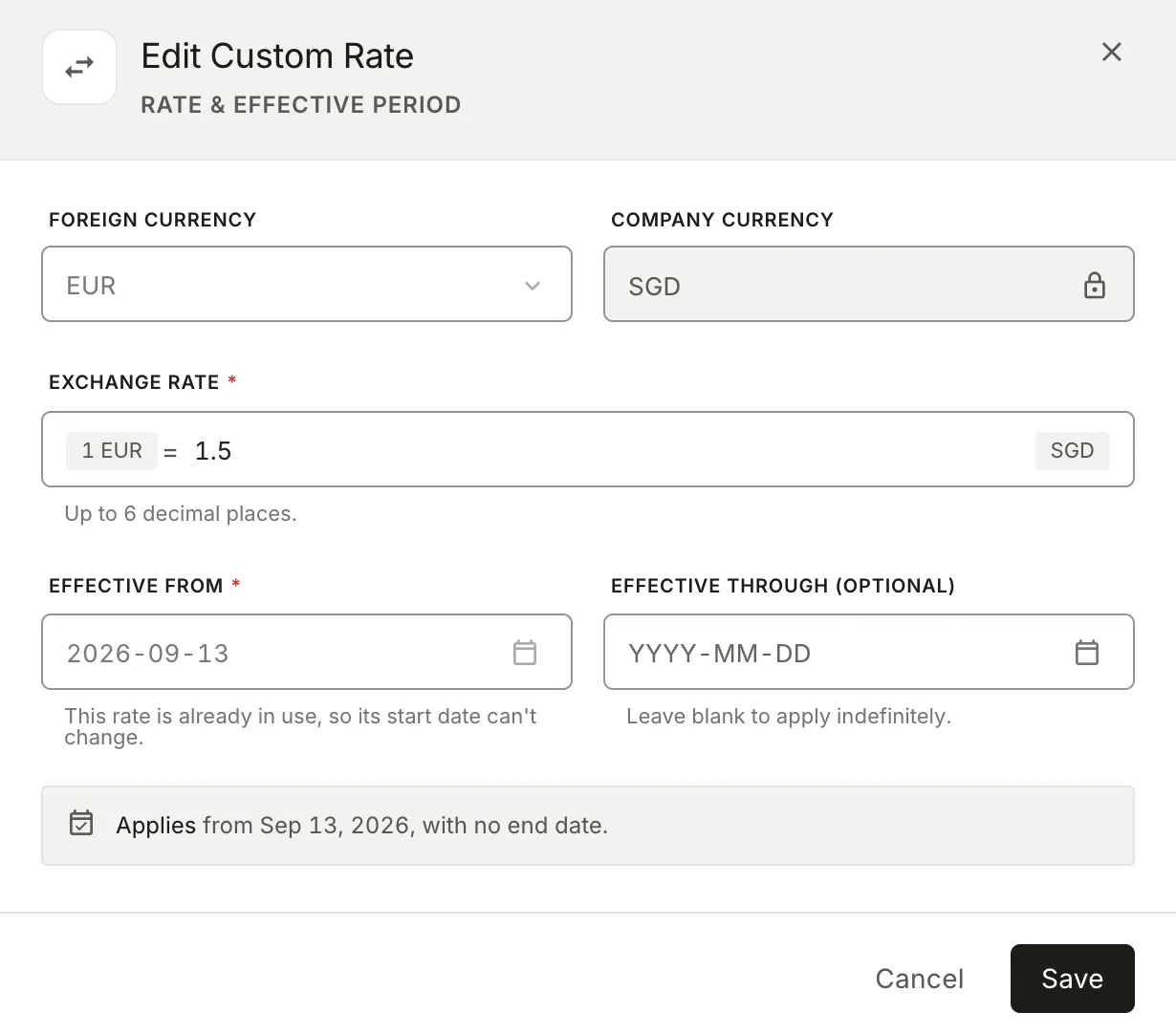
The dialog explains that the start date cannot change because the rate is already in use, and shows whether the rate has an end date.
Switch to Automatic returns the currency to automatic rates from today and removes upcoming custom periods. Remove acts on a single period. In either case, a period that began before today is ended yesterday; a period that starts today or later is removed from the schedule. Expired periods are kept. Both actions are recorded in change history.
Review rate changes in one place
Open Change history to review recorded creations, edits, endings, and removals. A creation entry includes the user, timestamp, currency pair, rate, and effective period. You can filter by foreign currency.
Manage custom rates through the API
The API documentation describes endpoints for creating and managing rate periods, reading history, and resolving rates. These endpoints are not automatically available to partner API credentials; check each endpoint’s authentication and permissions. See API credentials versus OAuth 2.0 for authentication context.
Frequently asked questions
Which rate does an invoice use?
NewLedger first looks for a custom period that covers the invoice date. If none applies, it uses the automatic rate. An invoice can also have its own rate, entered through Rate for this transaction. Check the displayed rate and its details before saving, especially after you change dates.
Will a backdated invoice get the historical market rate?
Automatic rates are not guaranteed to match a backdated invoice’s date. The documented rate lookup returns the latest stored automatic rate when no custom period applies. For a historical transaction, check the required rate and set an appropriate custom period or enter it on the invoice.
Can custom periods overlap?
No. NewLedger rejects overlapping periods for the same currency. When you replace an open-ended period, you can end it the day before the new one starts.
Does setting a custom rate lock my bank's exchange rate?
No. It sets an accounting conversion rate. It does not fix a bank's conversion price or change your customer agreement.
Start with the rate you need
Use the company schedule for a shared rate and effective period, and the invoice's rate control for a one-off exception. Open FX Rates in NewLedger to get started, or explore multi-currency accounting.
How this guide was prepared
This guide draws on NewLedger's FX settings, invoice editor, change history, and published API contract. Screenshots show fictional demo data with SGD as the company currency. Example rates are illustrative. Confirm the accounting and tax requirements that apply to your business.
More in Guides
Client Accounting Onboarding Checklist for Bookkeeping Firms
A practical checklist for moving a new client from signed scope to reliable monthly delivery—with clean opening data, controlled access, and clear responsibilities.
Read articleManaging Multiple Client Ledgers: An Operating Guide for Modern Accounting Firms
A practical framework for standardising onboarding, reconciliation, review, close, and reporting without weakening the boundary around each client's books.
Read articleAPI Credentials vs OAuth 2.0 in NewLedger
Which App Connect path should you use for server-side integrations, partner apps, and user-approved MCP clients?
Read article